support@registrationkraft.com


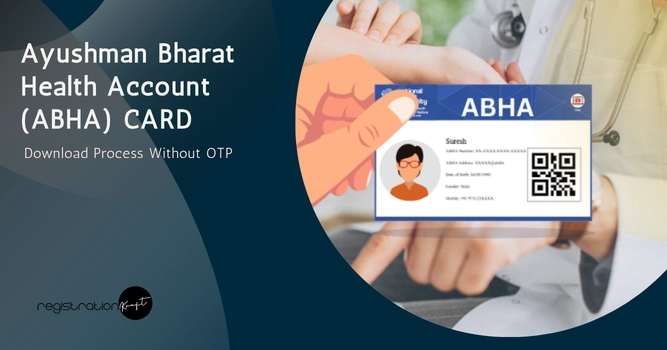

The ABHA Card (Ayushman Bharat Health Account) can be accessed and managed digitally through the ABHA platform. In situations where mobile OTP authentication is not convenient, users may be able to use face authentication to access their ABHA profile.
The process described below involves using the ABHA application and Aadhaar Face RD application on a smartphone. The authentication is completed through face verification, after which users can access their ABHA profile and download the available digital card.
The process can be completed using a smartphone and computer, so there may be no need to visit a cyber café.
Applications Required to Download ABHA Card
Before starting the process, install the following applications on your smartphone:
- ABHA application
- Aadhaar Face RD Service
Both applications can be searched for on the Google Play Store.
Once the applications are installed, visit the official ABHA website to begin the process.
ABHA Card Download Process (Without OTP)
Step 1: Visit the ABHA Website
Open the official ABHA website on your computer.
The website provides different options for creating and accessing an ABHA account. Since the objective is to access an existing ABHA account, select the option to find ABHA using a mobile number.
Step 2: Enter the Registered Mobile Number
Enter the mobile number associated with the ABHA account.
The process described in the transcript indicates that even if the mobile number is no longer active or the user does not currently have access to the number, they can enter the number if they remember it.
After entering the mobile number, complete the captcha and click Next.
Step 3: Select the ABHA Account
After clicking Next, the ABHA accounts associated with the entered mobile number will be displayed.
The names associated with the accounts will also appear on the screen.
Select the ABHA account that you want to access.
Once the account is selected, different authentication methods will be displayed.
Step 4: Choose Face Authentication
The available authentication options include:
- ABHA OTP
- Mobile OTP
- Fingerprint authentication
- Face authentication
To access the account using facial verification, select Face Authentication and click Next.
Step 5: Generate the QR Code
After selecting Face Authentication, a QR code will appear on the computer screen. Open the ABHA application on your smartphone and scan the QR code and continue with the authentication process. The smartphone will then display options related to ABHA and Aadhaar Face RD.
Step 6: Complete Face Authentication
Select Aadhaar Face RD on the smartphone. The application will then prompt the user to complete face authentication. Follow the instructions displayed on the phone and complete the face scan.
Once the authentication is successfully completed, the ABHA profile will open on the computer.
Step 7: Access and Download the ABHA Card
After successful authentication, the user’s ABHA profile and available account details will be displayed.
The platform provides several options for managing the ABHA account. These may include:
- Downloading the ABHA Card
- Printing the card
- Accessing the PVC card option
- Editing profile details
- Setting a password
- Re-verification
- Changing the linked mobile number
- Delinking the mobile number
- Deactivating the account
To obtain a digital copy of the ABHA Card, select the Download option and follow the instructions provided on the screen.
Set a Password for Easier Future Access
Users can also set a password for their ABHA account.
Setting a password can make future access easier, as users may be able to log in using their ABHA number and password instead of going through the complete authentication process every time.
The account management section may also provide options for changing or delinking the registered mobile number.
Creating and accessing an ABHA account and digital ABHA Card is generally provided as a digital health service. However, if a cyber café or service provider prints the card or provides additional assistance, the provider may charge a reasonable service or printing fee.
Also Read : How to do Aadhaar Face Authentication in UMANG App
Conclusion
The ABHA platform provides a convenient way for users to access their digital health account and ABHA Card. The process described in the post uses the ABHA application and Aadhaar Face RD application to complete face-based authentication.
By selecting the appropriate account, choosing Face Authentication, generating the QR code and completing the face scan, users can access their ABHA profile and use the available card download and account-management options.
Users should always use the official ABHA platform and authorised applications and should not share their personal, account or biometric information with unauthorised individuals.
FAQs
Q.1 What is an ABHA Card?
ABHA Card stands for Ayushman Bharat Health Account Card. It provides a unique health account that helps individuals access and manage their digital health records and healthcare services.
Q.2 Can I download my ABHA Card without mobile OTP?
Yes. The process described in the article allows you to access your ABHA account using face authentication, without relying on a mobile OTP.
Q.3 Which apps are required for ABHA face authentication?
You need the ABHA app and the Aadhaar Face RD app on your smartphone. Aadhaar Face RD is used specifically for the face-authentication step.
Q.4 Do I need to visit a cyber café to download my ABHA Card?
No. You can complete the process yourself using a computer and smartphone. Cyber café operators may also assist customers who need help with authentication or printing.
Q.5 What if my mobile number linked to ABHA is inactive?
According to the process described, you can use the mobile number previously associated with your ABHA account to find the account and then proceed with face authentication.
Q.6 Is ABHA Card download free?
The digital ABHA Card can generally be accessed without a separate download fee. However, a cyber café or service provider may charge a reasonable fee for services such as printing or assistance.
Q.7 Can I change my mobile number after accessing my ABHA account?
Depending on the options available in your ABHA profile, you may be able to change or delink the registered mobile number after successfully authenticating your account.
Q.8 Can I set a password for my ABHA account?
Yes. After accessing your ABHA profile, you may have the option to set a password, which can make future account access more convenient.
Q.9 Is Aadhaar used to download the ABHA Card?
Aadhaar-based face authentication can be used to verify your identity during the process. The Aadhaar Face RD app is used only for face authentication; the card being accessed or downloaded is the ABHA Card.
Q.10 Is it safe to use face authentication for ABHA access?
Use only the official ABHA platform and authorised applications. Avoid sharing your personal information, account credentials or biometric information with unauthorised individuals.