support@registrationkraft.com


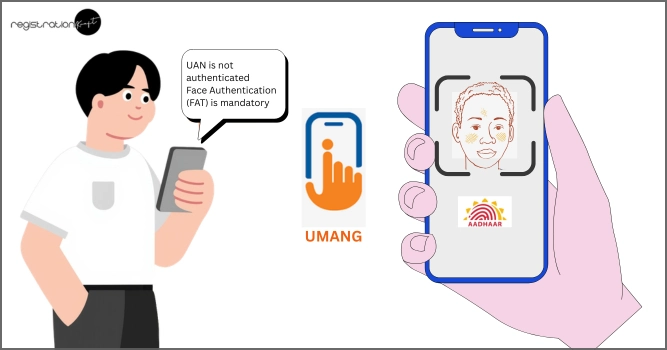

Many EPFO members are receiving an SMS stating that their UAN is not authenticated and that Face Authentication (FAT) is mandatory to continue receiving benefits such as PMVBRY. If you’ve received a similar message, don’t worry—the process is simple and can be completed using your mobile phone.
In this article, we will guide you step-by-step on how to complete face authentication through the UMANG App.
Why Face Authentication (FAT) is Required
The Employees’ Provident Fund Organisation (EPFO) has made face authentication mandatory to verify your identity digitally. This helps ensure that only genuine beneficiaries receive PMVBRY scheme benefits.
Apps You Need
Before starting the process, make sure you have the following two apps installed on your phone:
- UMANG App (Download Link)
- Aadhaar App (Download Link)
Both apps are essential for completing the authentication process.
Step-by-Step Process to Complete Face Authentication through UMANG
Step 1: Open UMANG App
- Launch the UMANG App on your mobile.
- Scroll down to the “Recent Services” section.
- Tap on EPFO (or search for EPFO in the search bar).
Step 2: Select Face Authentication Option
- After opening EPFO services, scroll down.
- Click on “Face Authenticate of Already Active UAN”.
Step 3: Start Face Authentication
- Tap on the Start button.
- The system will redirect you to the Aadhaar-based face authentication screen.
Step 4: Capture Your Face
- A red circle will appear on your screen.
- Position your face properly inside the circle.
- Once aligned correctly, the circle will turn green.
- Blink your eyes when prompted.
After blinking, your face will be captured successfully.
Step 5: Enter Required Details
Once your face is authenticated, you need to fill in the following details:
- UAN (Universal Account Number)
- Aadhaar Number
- Mobile number linked with Aadhaar
✔ Tick the declaration checkbox.
Step 6: Submit the Application
- Click on the Submit button.
- A confirmation popup will appear.
If everything is correct, you will see a message stating that your face authentication is successful, along with an application number.
Important Tips
- Ensure your Aadhaar-linked mobile number is active.
- Sit in a well-lit area for accurate face capture.
- Keep your face steady and clearly visible during scanning.
- If authentication fails, try again until successful.
Conclusion
Completing face authentication through the UMANG App is a quick and user-friendly process. By following the steps above, you can easily verify your identity and continue receiving your EPFO benefits without interruption.
If you’ve received the EPFO SMS, make sure to complete this process as soon as possible to avoid any issues with your benefits.